
Flux Reference Manual

  • Welcome to Flux
  • Introduction
    • Installing the software
    • The user interface
    • Part workflow
  • CAD
    • 2-D Import
      • 2-D Cleanup
    • 3-D Import
      • Import 3D Model
      • Import assembly
      • Form detection
      • Component detection
    • Modifying the geometry
    • Attachments
  • Laser CAM
    • Part workflow
      • Editing panels
        • Laser cut
          • Approach
          • Withdrawal
          • Microjoint
          • Advanced
        • Contour
        • Scrap cut
        • Part
        • Corner treatment
      • Quick-Nest
    • Job workflow
      • Job panel
        • Sheets tab
        • Parts tab
        • Layouts tab
        • Summary tab
      • Edit layout
        • Nesting modes
        • Placement panel
        • Sequencing
        • Slice sheet
    • Bevel cut
      • Open contours
      • Variable bevel
      • Miscellaneous
    • Advanced
      • Finishing rules
      • Edit LTT
      • FlyLine
      • TwinLine
        • Strategy
        • Microjoints
        • Further settings
      • DetectLine
  • Bend CAM
    • Create bend data
    • Bend navigator
    • Edit bend data
      • Edit a bend
      • Edit a tool mount
      • Edit a bend setup
      • Edit the back-gauges
      • Edit angle measurement
      • Bends spreadsheet
      • Changing the sequence
      • Adding setups and stations
    • Advanced
      • Angle measurement
      • Batch process
      • Recompute solution
      • Tonnage check
    • Bending Aids
  • BendMaster CAM
    • Bend navigator
    • Part pickup
      • Pickup from pallet
      • Pickup from dispenser
    • Robotic bending
      • Insertion
      • Bending
      • Extraction
    • Regripping
      • Regrip panel
      • Add regrip
      • Edit regrip
      • Regrip with jaw
      • RG-Stations panel
    • Part deposit
      • Deposit panel
      • Repeat and sequence
      • Add separator sheets
      • Lock part-rest
      • Deposit pattern types
    • Advanced
      • Waypoints
      • Cell configuration
      • Custom Cell Components
      • Gripper database
        • Create a gripper
        • Import gripper from DXF
        • Import Suction Cup
  • FlexCell CAM
    • Bend navigator
    • Part pickup
      • Pickup from pallet
      • Centering table
    • Robotic bending
      • Insertion
      • Bending
      • Extraction
      • Advanced
    • Regripping
      • Regrip panel
      • Add/Remove regrip
      • Gripper Panel
      • RG-Stations panel
    • Part deposit
      • Deposit panel
      • Deposit Tabs
    • Advanced
      • Waypoints
      • Cell configuration
      • Gripper database
        • Create a gripper
        • Import gripper from DXF
    • Troubleshooting
  • Fold CAM
    • Create fold data
    • The Fold view
    • Editing Fold data
      • Edit a bend
      • Edit a side/section
      • Change the sequence
      • Edit the blank-holders
      • Edit the gauging
      • Edit the blades
      • Edit the loading
      • Edit the unloading
    • Tool inventory
    • Advanced
      • Custom air-gap tables
      • Manual bend completion
      • Required flange length
  • Settings
    • Drawing
      • Layers
      • Dimensions
      • View
    • Bend CAM
      • Machine defaults
      • Bend outputs
      • Bend view
      • Bend cell
    • Cut CAM
      • Layout
        • Nest settings
        • Sheet
        • Sheet handling
        • Skeleton cuts
        • Work support
      • Laser CAM
        • Sequence
      • Cut outputs
      • Cut view
    • Panel bending
      • Defaults
      • ZBW carriers
      • Outputs
    • Reports
      • Item defaults
    • Import/Export
    • Environment
  • Database
    • Materials
    • Machines
    • Bend tools
    • Bend deductions
    • Bend grippers
    • Forms and Components
  • Reports
    • Report designer
    • Fields, pictures and tables
    • Bands (sub-reports)
    • Labels, bitmaps and shapes
  • Appendix
    • Supported 3D formats
    • Separator sheet DXF
    • Bend tool DXF
    • The Adapt Geometry feature
Fold CAM
/
Create fold data

Create fold data

You can create Fold Technology Data (panel bender tooling) for a sheet-metal part using the Fold module. Let us assume you have already installed a machine, and that you have imported a CAD part (2D or 3D):
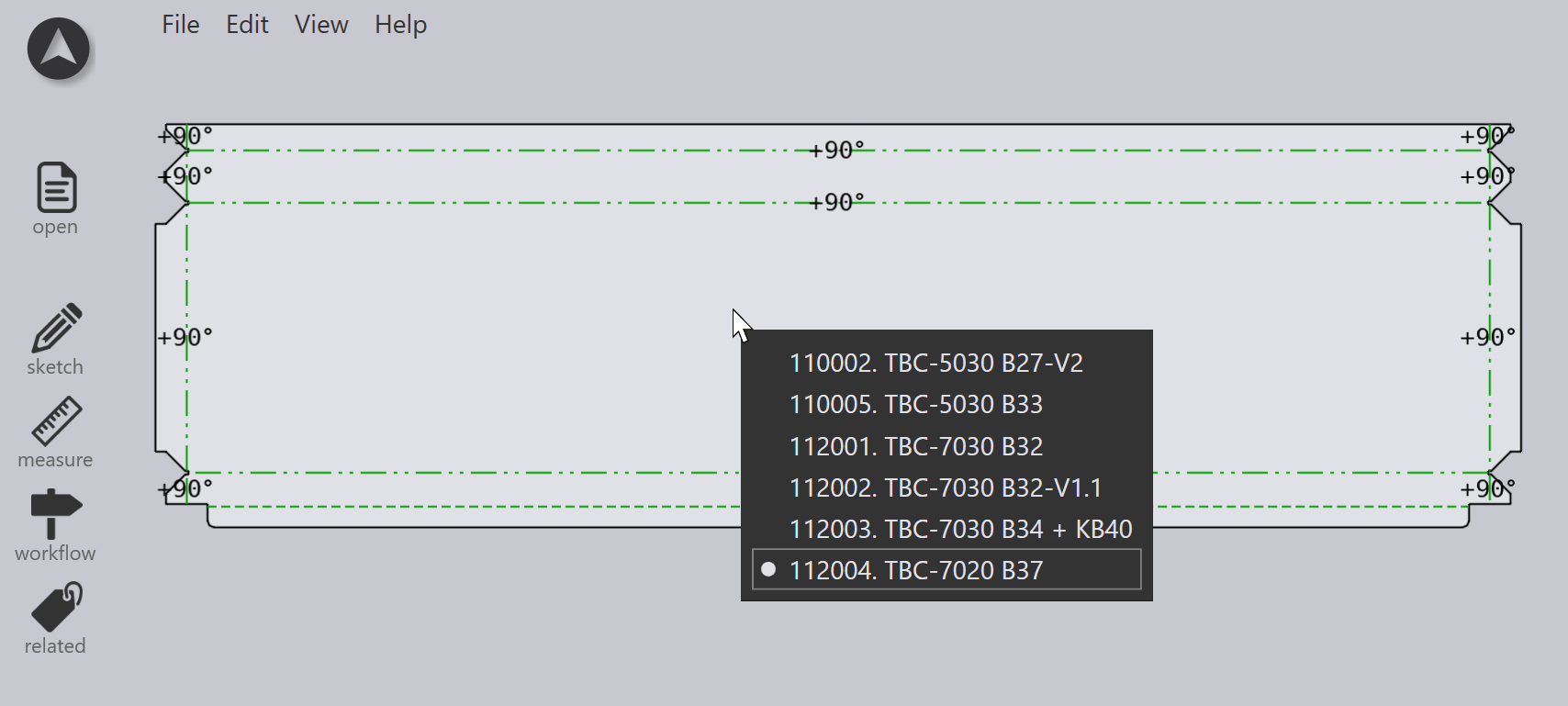
2D Part

Switching to Fold CAM

Now, the part can be tooled up for a panel bender by just pressing the F key. Flux brings up a menu where you can select one of the panel benders that are installed. The part is then tooled up for this machine. The bending sequence, the blank-holder composition, gauging, and any optional ZBW or ENW tools are all computed, and you should see a result like this:
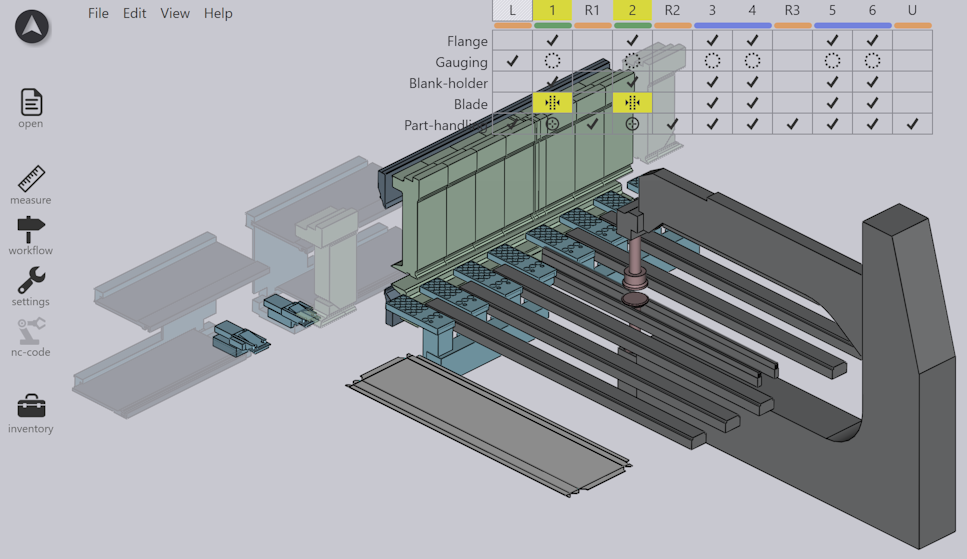
Tooled-up Part

If there are no errors, the NC program is generated for the part and saved into the output folder that has been set up for this machine.

Code Generated
See also the the Workflow panel, which can be accessed by pressing the W key. This provides more control over creating bend technology data, and options for routing the part through laser CAM, nesting etc.

Further operations

Here is a quick summary of some of the operations you can do once a part has been tooled up for bending. The following pages of this manual provide more detail about each of these operations.

  • If you click the Spacebar, a panel bender simulation starts. You can also use the simulation controls on the Fold Navigator to start, stop or rewind the simulation:
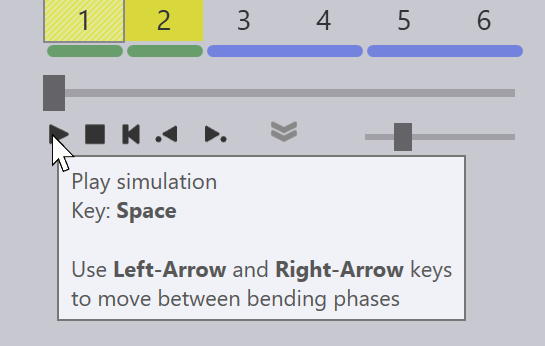
    Simulation Controls

  • If there are any warnings or errors, they show up in the Fold Navigator, and you can view those and solve them by clicking on the corresponding cells.

  • You can edit the fold tooling (blank holders, gauging, ENW and ZBW tools, grippers).

  • You can change the machine by clicking on the machine name in the tab below the part, and selecting a different machine:
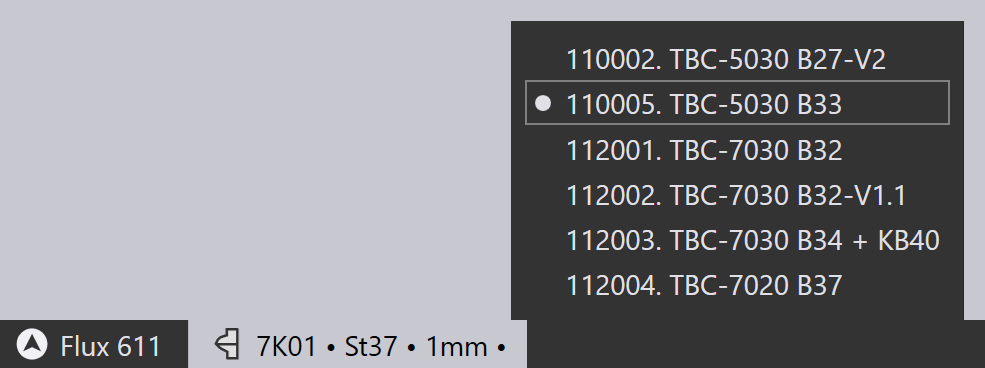
    Change Machine

When a fold solution is created, if there are no errors, the part NC program is generated. You can control this behavior (whether the NC program is generated automatically) from the Fold Outputs page of the Settings dialog. If code has been generated, the nc-code button in the left toolbar is grayed out:
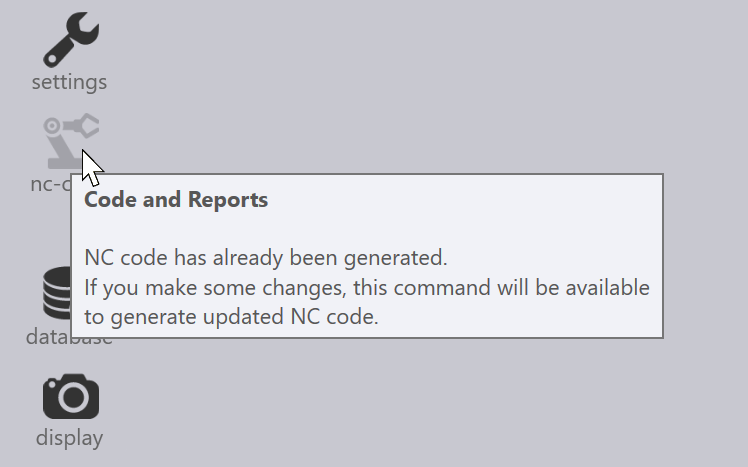
NC-Code

As you make any changes to the part, this button becomes enabled again, and you can re-generate the NC program by clicking on this icon again (or by pressing the C key).

Contents

  • Switching to Fold CAM
  • Further operations
Fold CAM The Fold view

      Copyright © 2025 TRUMPF Metamation. All rights reserved.

    Compiled by Bento