
Attachments
Once you import a CAD file, you can attach additional files to it. These attachments provide supplementary information for the sheet metal part design and manufacturing process.
The Attachments option is available at the bottom right corner of the Flux window.
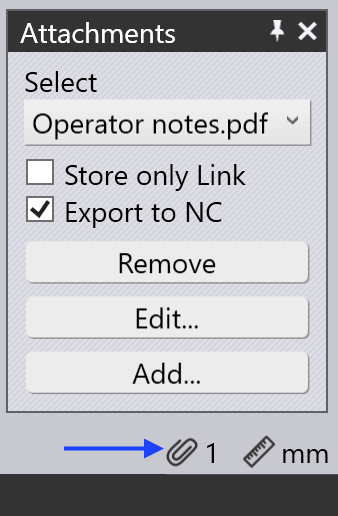
Click the Attachments  icon and click the
Add… button to select the
files you want to attach. Once a file is attached, you can see additional
options to manage the files.
icon and click the
Add… button to select the
files you want to attach. Once a file is attached, you can see additional
options to manage the files.
Store only link: If you select this option, Flux will only store a link to the file instead of embedding the file itself. This is useful if the file is large or if you want to keep the file separate from the CAD file.
| If you choose to store only a link to the file, make sure the link remains valid and accessible. If the link is broken or the file is moved, you may lose access to the attachment. |
Export to NC: If you select this option, the attachment will be included in the NC code export.
| This option is only applicable for certain NC formats. |
Accepted attachment file types for applicable NC format are listed below:
| NC format | Accepted attachment file type |
|---|---|
Jupidu |
json, png, stl, pdf, bmp, gif, jpg, jpeg, tif, and tiff |
DLD |
Remove: Click this button to remove the selected attachment from the list.
Edit: Click this button to edit the selected attachment. This will open the file in its associated application.
Add: Click this button to add a new attachment. This will open a file dialog where you can select the file you want to attach.