
Quick-Nest
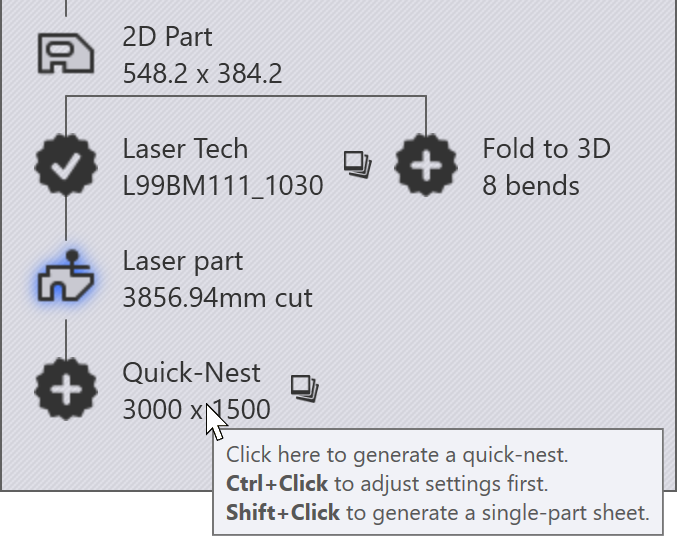
The Quick-Nest function is used to create a nested sheet with just a single part. An NC program and a setup sheet can then be generated for this report. One way to do a quick-nest is to use the Workflow panel.
-
Click W to open the workflow panel.
-
Use Ctrl+Click on the Quick-Nest icon to open the nest settings window, where you can set up the sheet size and the spacing between parts.
-
Click on the Quick-Nest icon to create a sheet packed with the single part, or Shift+Click to create a sheet with just one part on it.
-
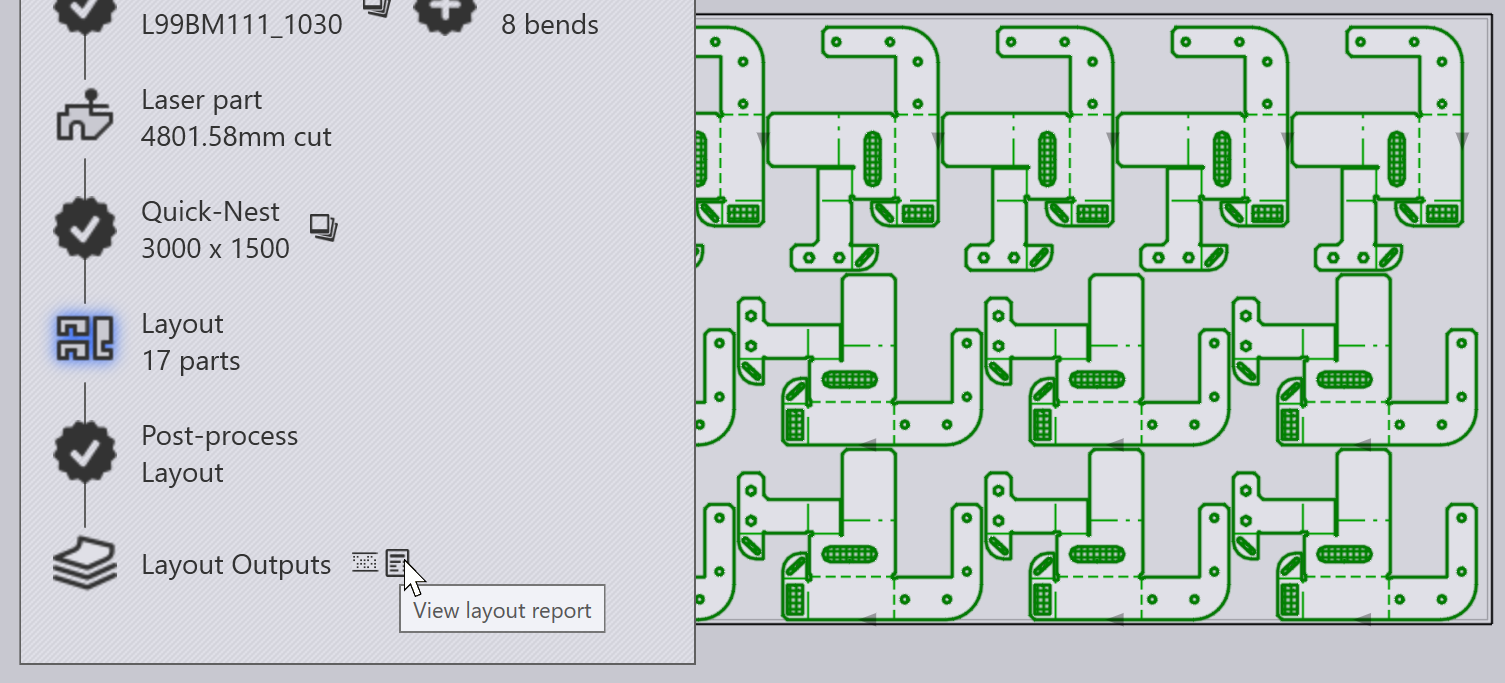
After the layout is created, you can continue clicking on the Post-Process Layout icon to compute the NC program and the report for the layout.
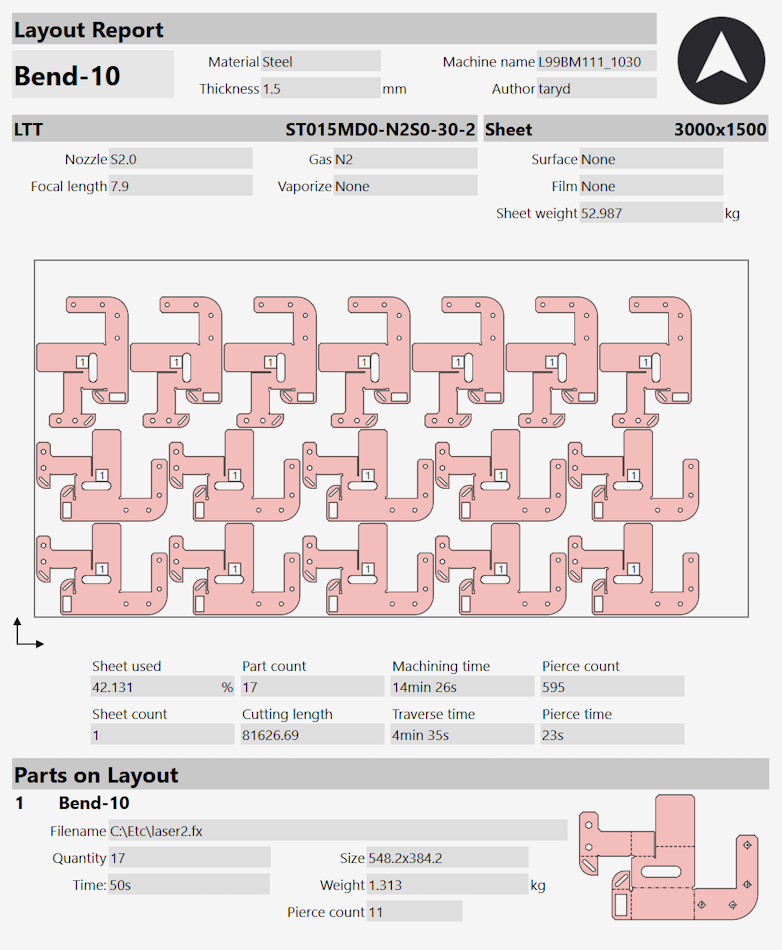
The image alongside shows the report created for a nested sheet.
You can also do all these steps, starting with a 2D part using these keyboard shortcuts:
-
Click L to generate laser tooling for the part.
-
Click N to do a Quick-Nest.
-
Click C to generate the NC program and the layout report.
| A more comprehensive method to create a nested sheet with multiple parts and more fine control over the nesting process, is to create a Flux Nesting Job. |